
Editing a client
The Edit client profile form is where you update client details, including their name, character, date of birth, parent or guardian's contact details, and the default email for session invites.
As an owner or admin, you can edit details for any client in your clinic, and you can also move (reassign) a client to a different clinician.
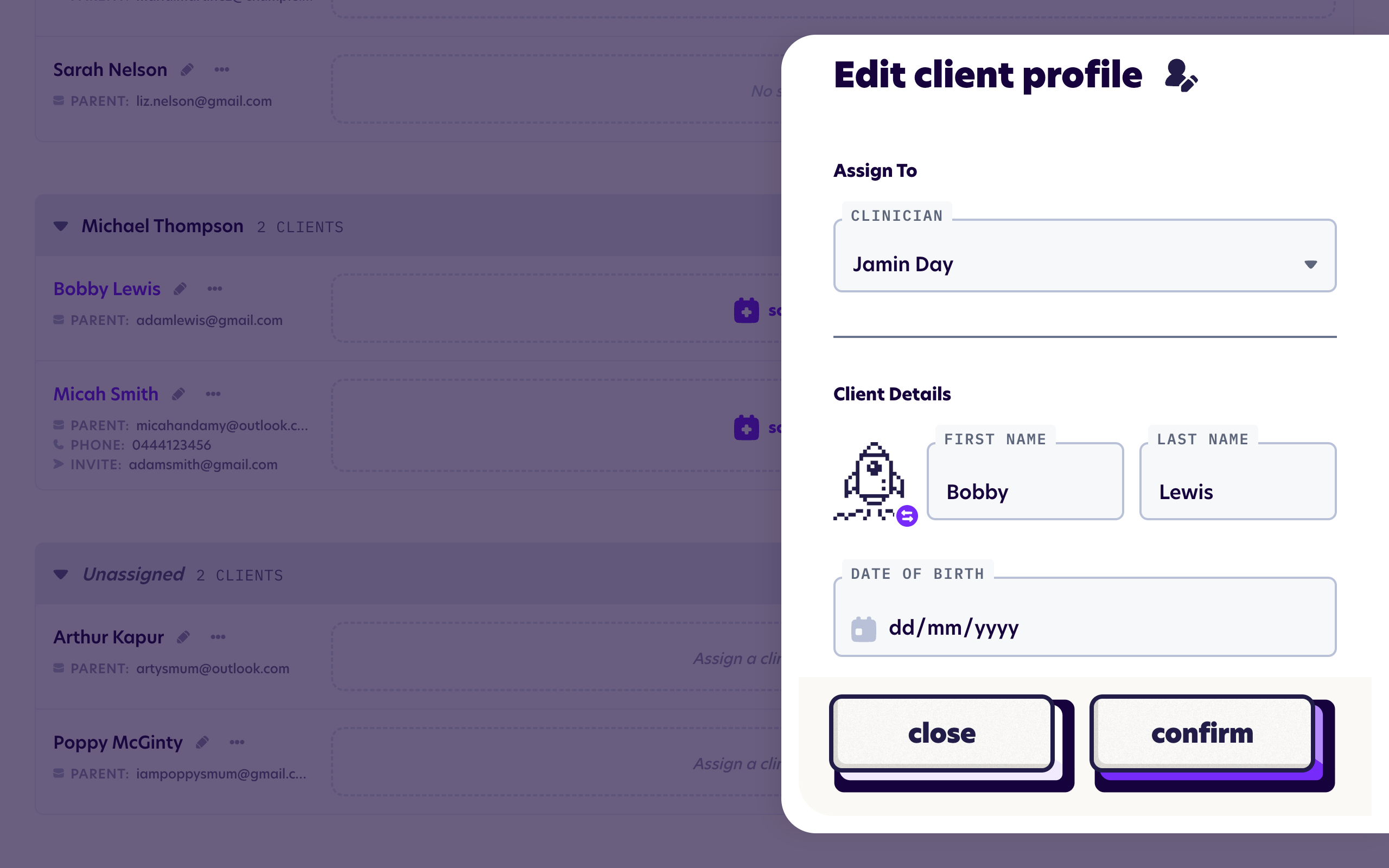
The Edit Client form
From your dashboard, find the client you'd like to update and click the small pencil icon next to the client's name.

Client details
You can update the child's first name, last name and character at any time. You can also add the child's date of birth if you would like to see it on the dashboard - great for remembering upcoming birthdays.
If this client has already joined at least one session with their clinician, the character shown here is the one they chose during their last session. Changing it from this screen will replace their choice for next time, so take care.
Parent and guardian details
In the parent or guardian section, you can add an email, a first and last name, and a mobile number in case you wish to keep all the relevant contact information in one place. Adding these details is optional.
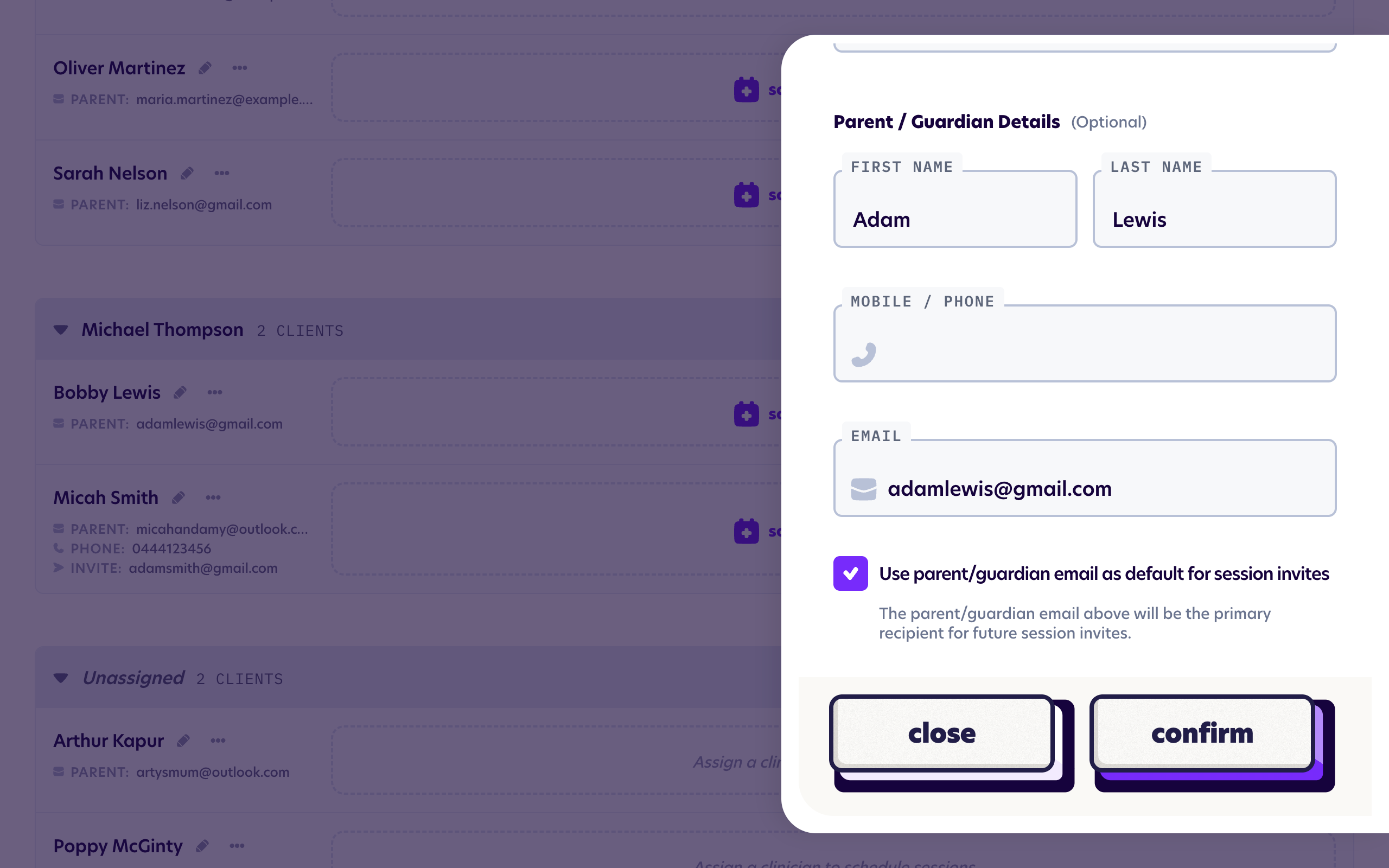
Choosing who receives session invites
The parent/guardian email will be used as the default email for sending session invites. However you can control this with the Use parent/guardian email as default for session invites checkbox.
If invites will regularly go to someone other than the parent or guardian, for example a second parent or a support worker, you can untick the box. A Primary recipient for email invites field will appear where you can enter an alternative primary email address.
The clip above demonstrates editing a primary recipient while in Card View. Admin accounts always use Table View, but can edit this field in the same way. To read more about the two views, go to the Display Settings guide.
Adding a primary recipient is a useful time-saver when the invite usually goes to the same person. You can always choose who receives session invites each time you create a session, or turn off automatic session invites and send details manually through your clinic's usual channels.
For more on how session invites and recipients work, see the Sending session invites and Contacts & email invites guides.
Reassigning to another clinician
As an owner or admin, you can move a client to a different clinician using the Assign To dropdown at the top of the form. Pick the new clinician, or choose Unassigned to leave them unallocated for now.
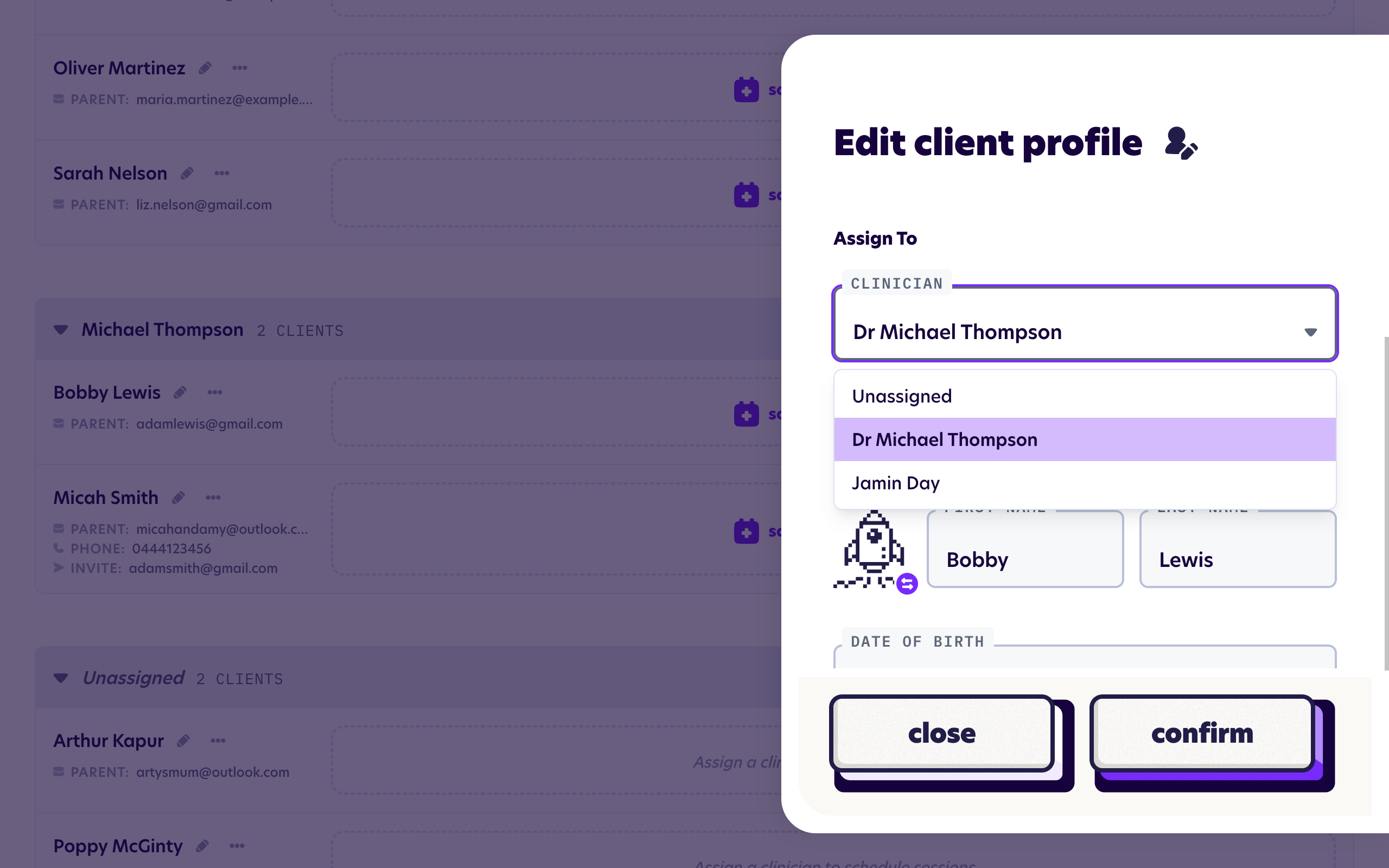
Reassigning or unassigning a client clears their room, including anything on the canvas, so they start fresh with their new clinician. You'll be asked to confirm before this happens.