
Inviting your team
The Team page of the Settings screen is where you invite colleagues into your clinic, manage who has access and keep an eye on the invitations you've sent.
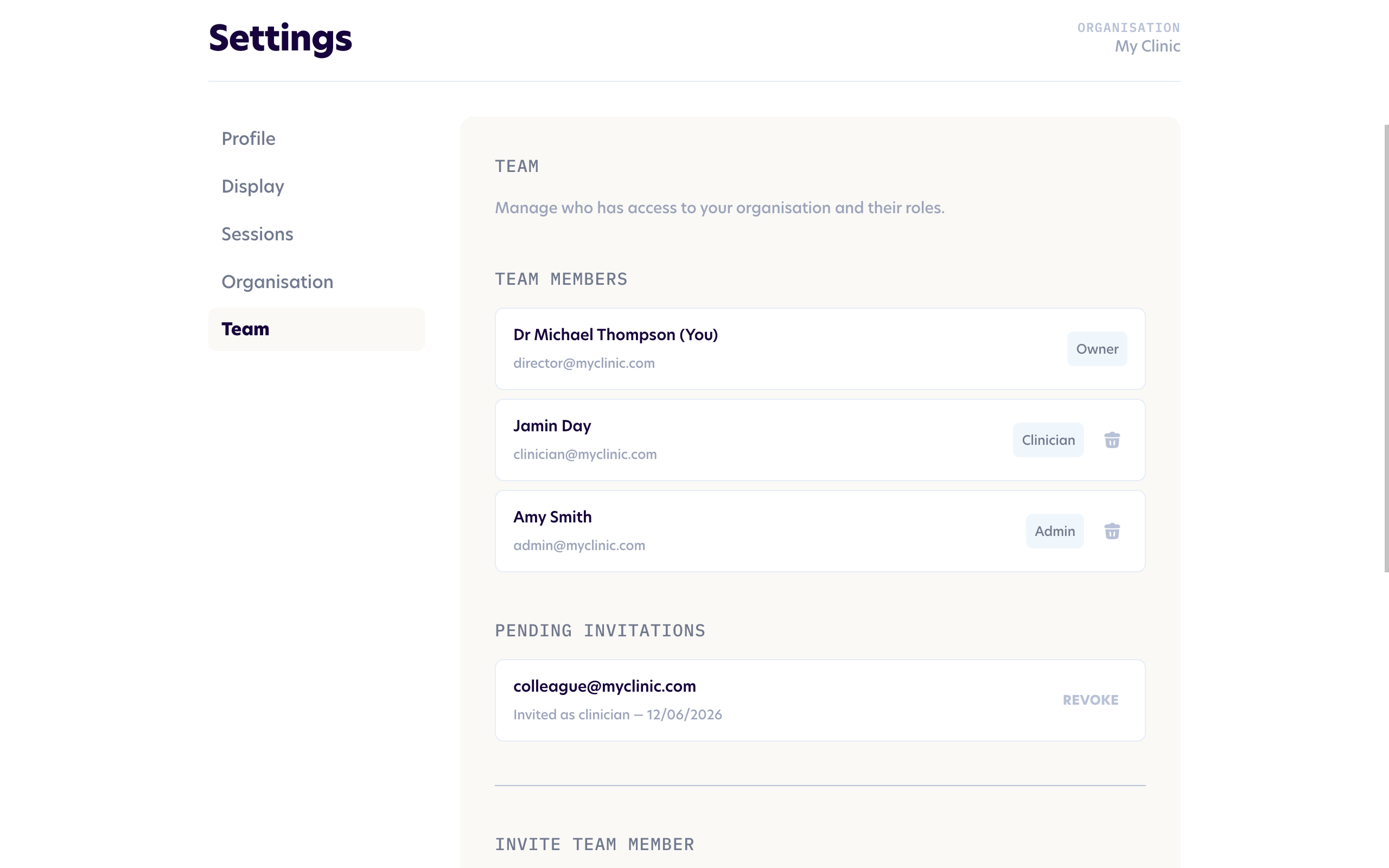
Finding the Team page
From your dashboard, click Settings in the top navigation bar, then choose Team from the list on the left. Only clinic owners and admins have a Team tab.
Choosing a role
When you invite someone, you choose the role they'll have in your clinic. The role controls what they can see and do, so it's worth picking the right one before you send the invitation.
- Clinician runs therapy sessions and looks after their own clients.
- Admin looks after the clinic's logistics, like clients, scheduling and invitations, but doesn't run therapy sessions.
You can invite people as a clinician or an admin. Every clinic has a single owner, the person who created it, so ownership isn't something you assign from here.
Sending an invitation
In the Invite team member form at the bottom of the Team page, enter your colleague's email address, choose their role, and click Send invitation.
Pluto emails your colleague an invitation with a secure link to join your clinic. When they accept, they'll create their account and set up their profile. You can see exactly what that looks like from their side in Creating a Pluto account.
Tracking invitations
Invitations you've sent that haven't been accepted yet appear in the Invitations section, showing the email address, the role you chose, and the date you sent it. An invitation is good for seven days. If it isn't accepted in that time it shows as Expired, and you can simply send a new one.
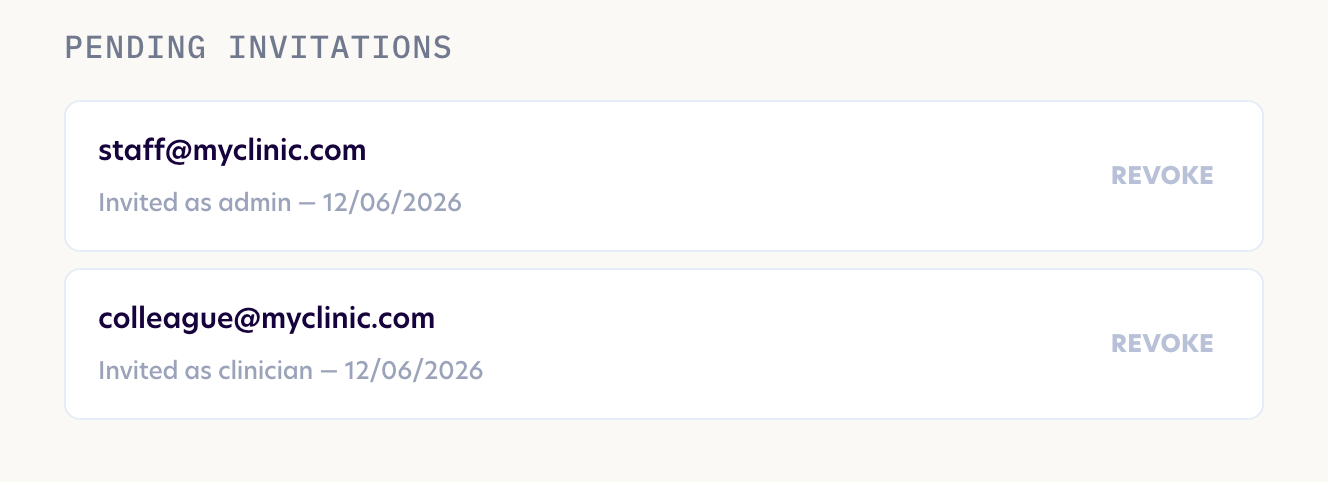
If you need to cancel an invitation, click Revoke next to it and the link in that invitation will stop working. If you try to invite someone who already has a pending invitation, Pluto will let you know, so revoke the original first if you want to start again.
Related guides
- Creating a Pluto account (what your colleague sees when they join)
- Managing your account