Scheduling a session
You can schedule an upcoming session so it is ready for you and your client to join at the right moment. This guide will walk you through it step-by-step. You can only schedule, reschedule and cancel sessions for clients who are assigned to you.
A client needs to be assigned to a clinician before any sessions can be scheduled for them. If a client is still unassigned, assign them to a clinician first by editing the client.
Creating a scheduled session
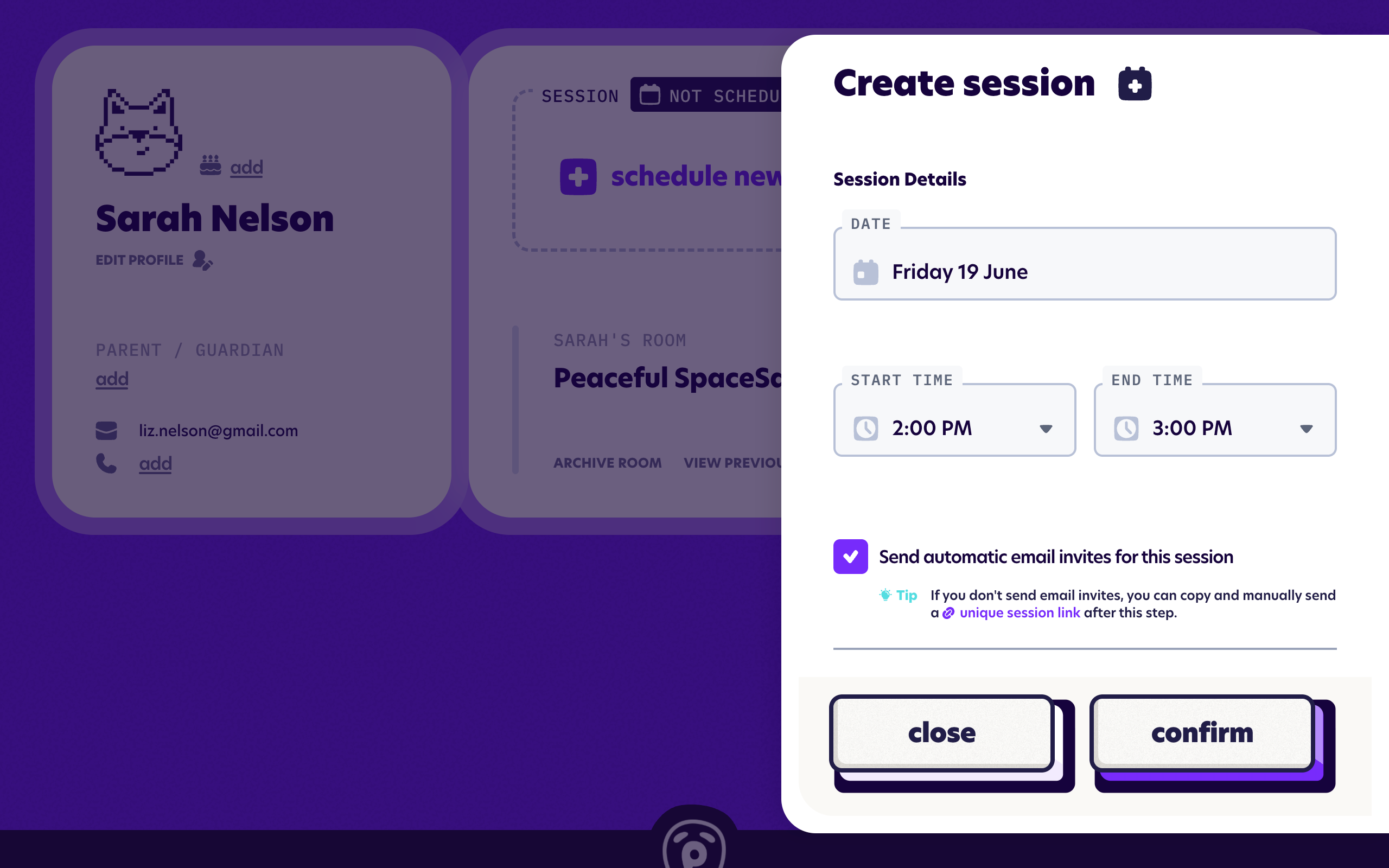
From your dashboard, find the client and choose Schedule new session, on their card in card view, or their row in table view. You can also schedule from inside the client's room.
Pick a date and a start time from the dropdown. Times are provided in sensible 15-minute intervals. The end time will default to one hour from the selected start time, but you can change it if you would like to schedule a longer or shorter session.
Inviting people to the session
You can choose whether to send automatic email invites for the session using the checkbox. When selected, you will need at least one recipient to continue.
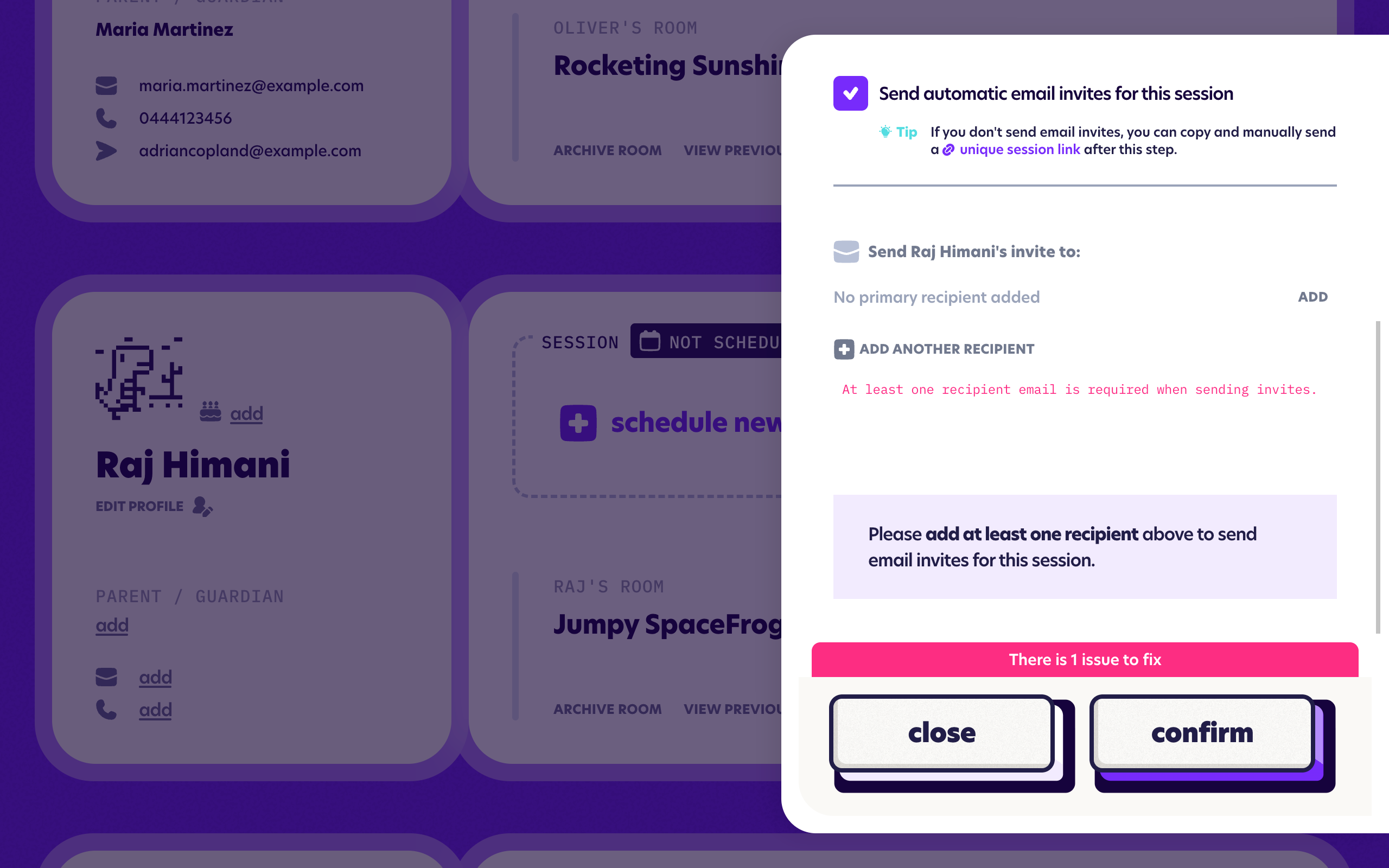
If you have added a parent/guardian or primary contact email to this client, it will be listed as the default primary recipient address. You can change this per-session if needed.
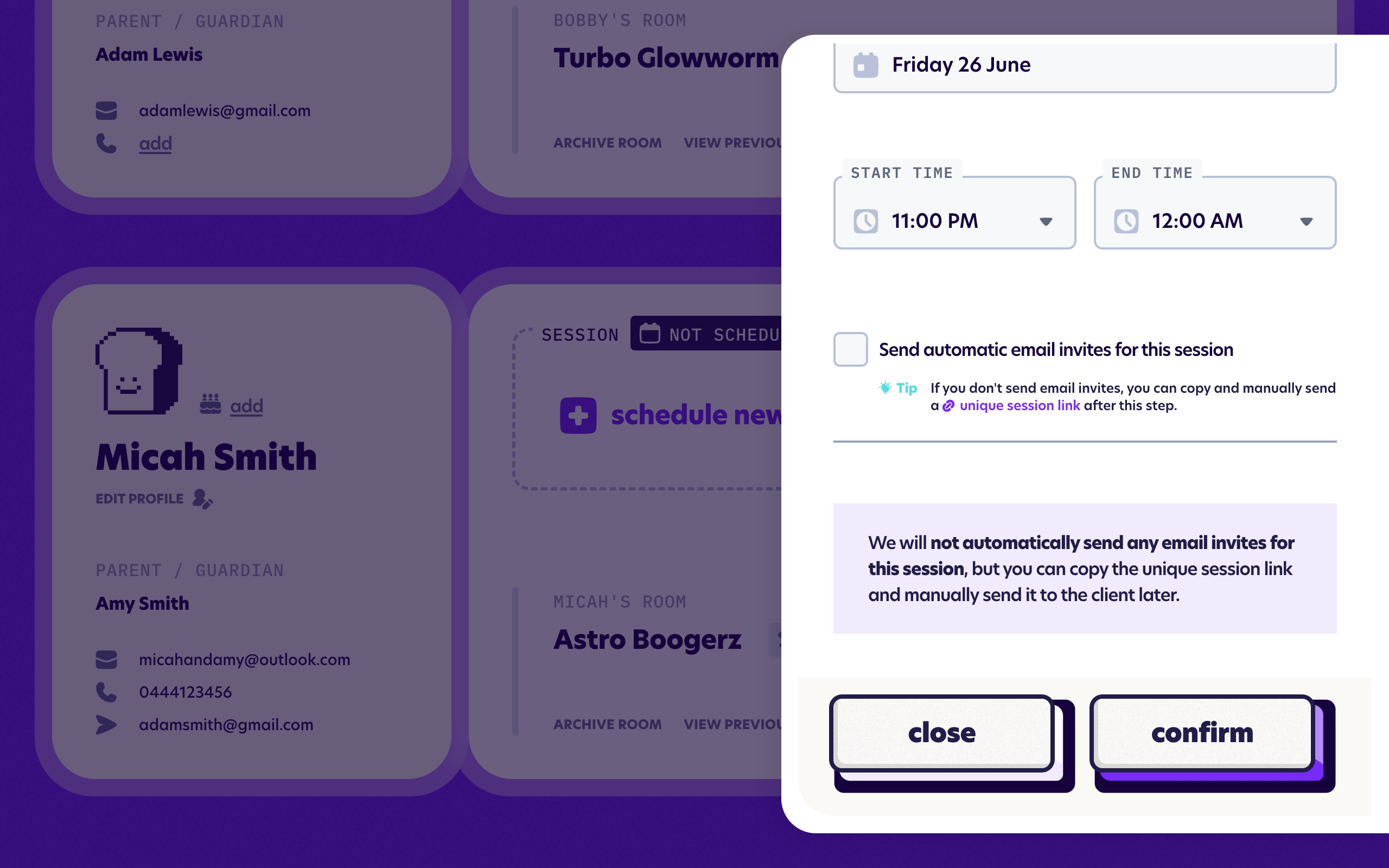
If you unselect the checkbox, Pluto will not send invites for that session. You can copy the unique session link or session code later and share it with the client using your regular methods of communication.
For more details on recipients, links and codes, see Contacts & email invites and Sending session invites.
Times and timezones
Session times are set in your own timezone, taken from your Profile settings. It's worth checking your timezone is correct before you schedule.
Because clients join from a link without a Pluto account, Pluto can't detect their timezone. To handle this, every invite includes a calendar file (.ics): when a recipient adds it to their own calendar, the session shows in their local time automatically. The email itself also states the session's timezone in writing, so the time is clear either way.
If you need more flexible timezone handling when scheduling, let us know.
Rescheduling a session
To move a session, open it from your dashboard and change the date or time. You can reschedule a session at any point while it is still Scheduled. Once it is due to start or already under way, it can no longer be edited, though it can still be cancelled.
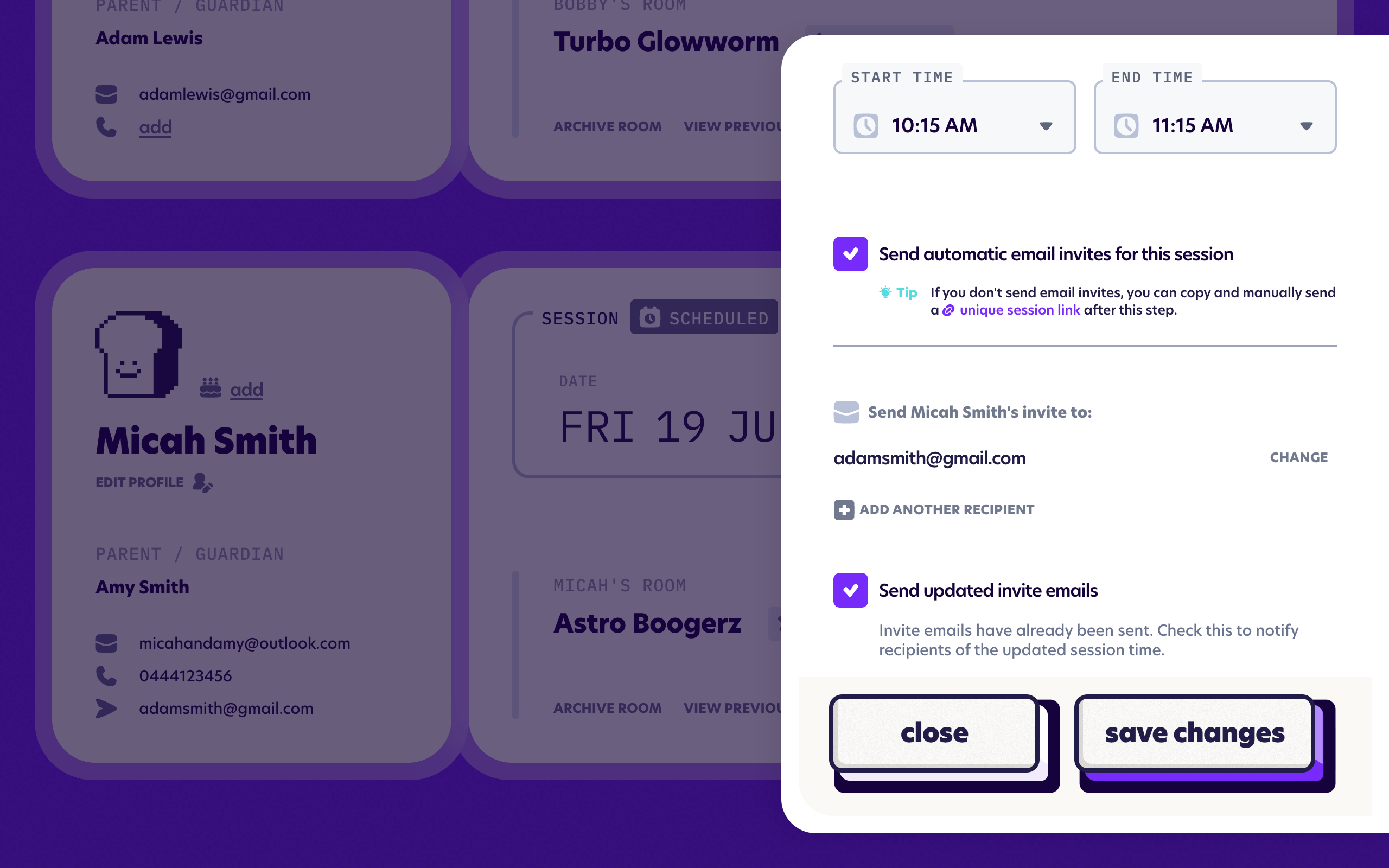
If invites have already been sent and you change the time, a Send updated invite emails option appears, ticked by default. Leave it ticked to let everyone know the new time, or untick it to update the time without resending. You won't see this checkbox if no session invites have been sent.
If you resend the invite emails, they will include an updated calendar entry for anyone who added the original appointment to their calendar.
Cancelling a session
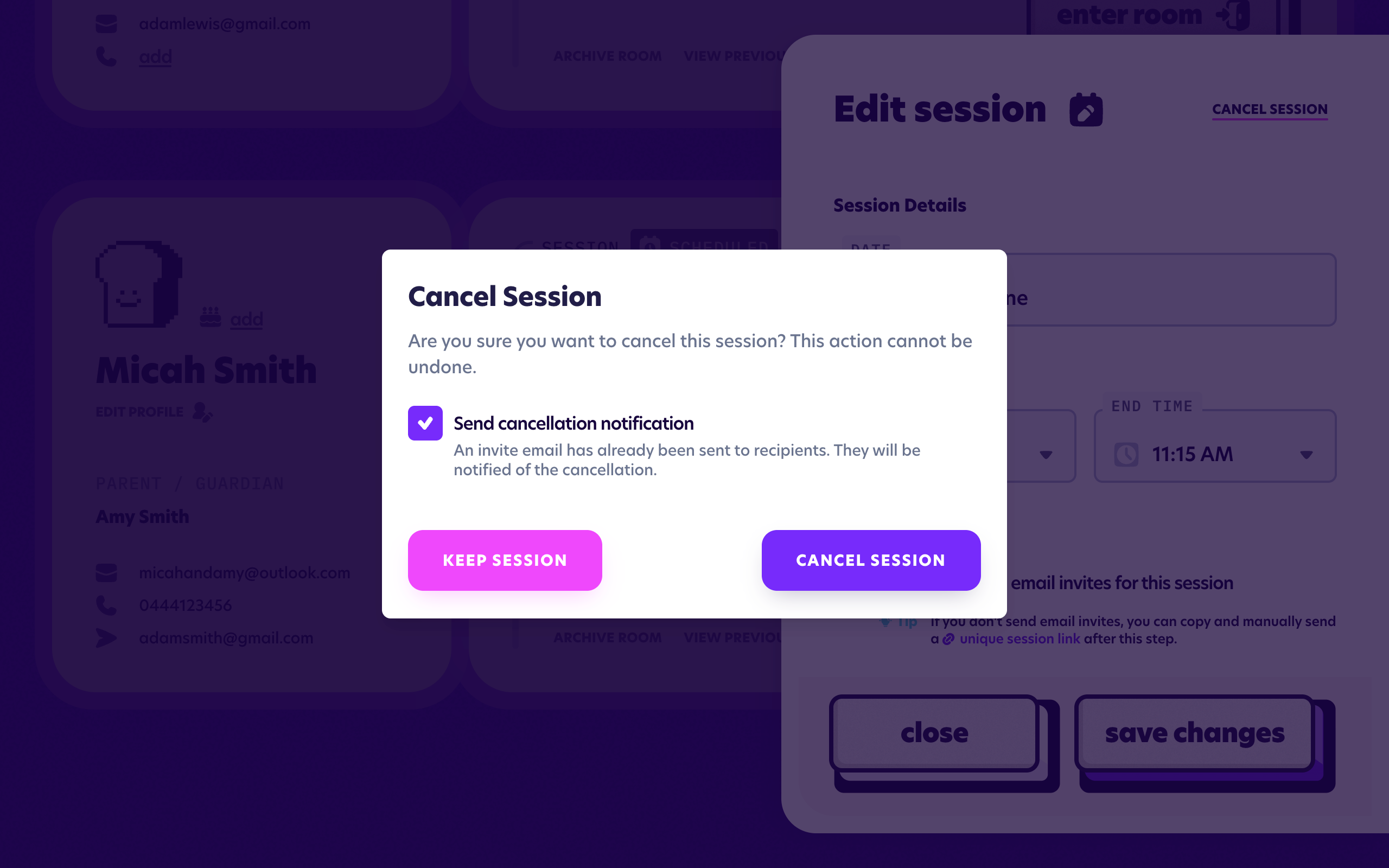
How you cancel depends on the session's status. While it is still Scheduled, open Edit session and choose Cancel session from the top right of the form.
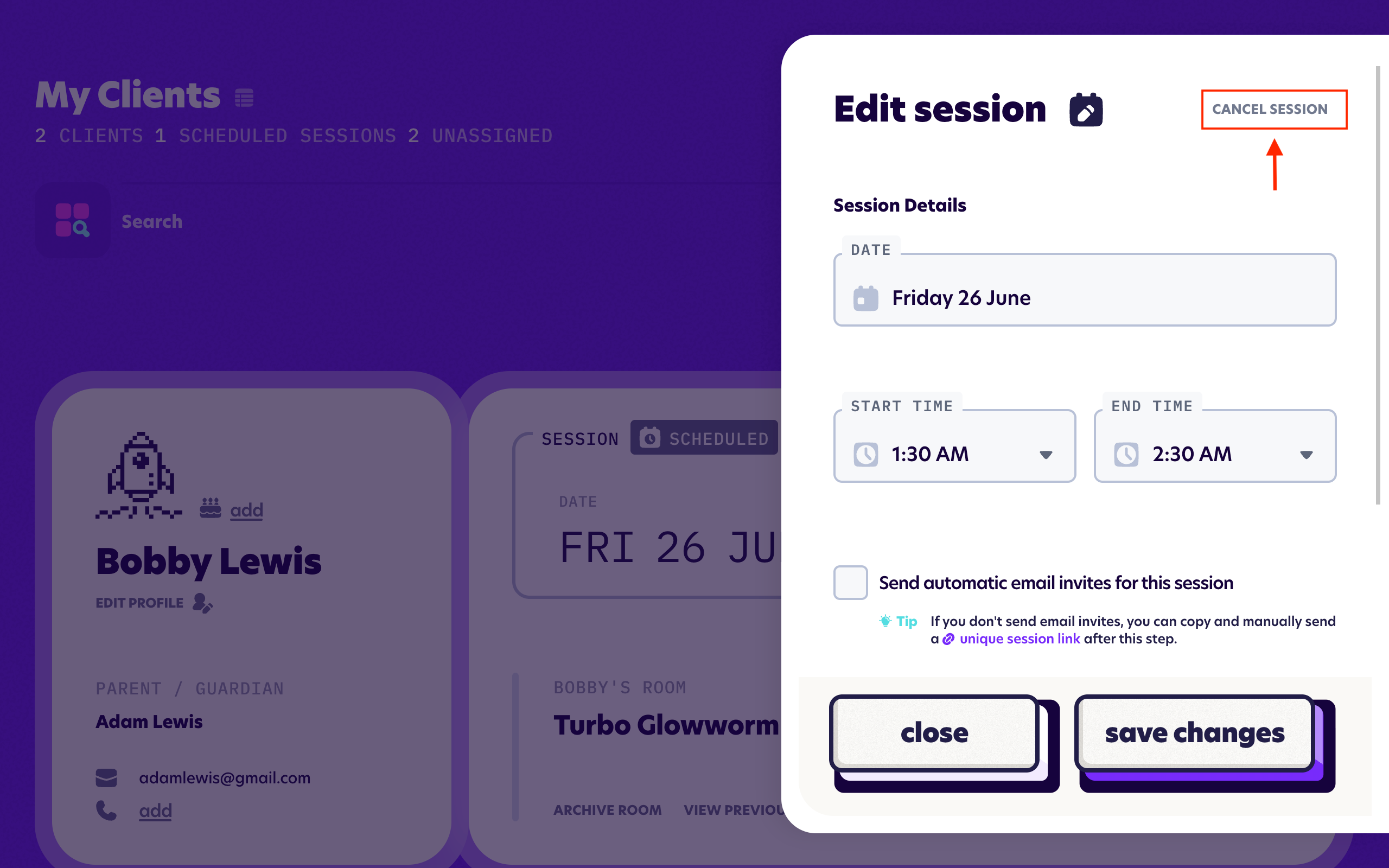
Once the session is due to start, it can no longer be edited, so a Cancel session link appears directly on the dashboard card instead. Either way, you'll be asked to confirm, as cancelling can't be undone.
The confirmation dialogue includes a checkbox asking if you wish to send cancellation notifications. If invites have already been sent out, this is ticked by default. This option is provided even if no session invite emails have been sent by Pluto, in case you had confirmed the session with the client through other methods of communication.