
Session settings
The Sessions screen is where you set your personal preferences for live sessions, including what happens before, during, and after a session ends. There are only a couple of options for now, but we'll be adding more here over time.
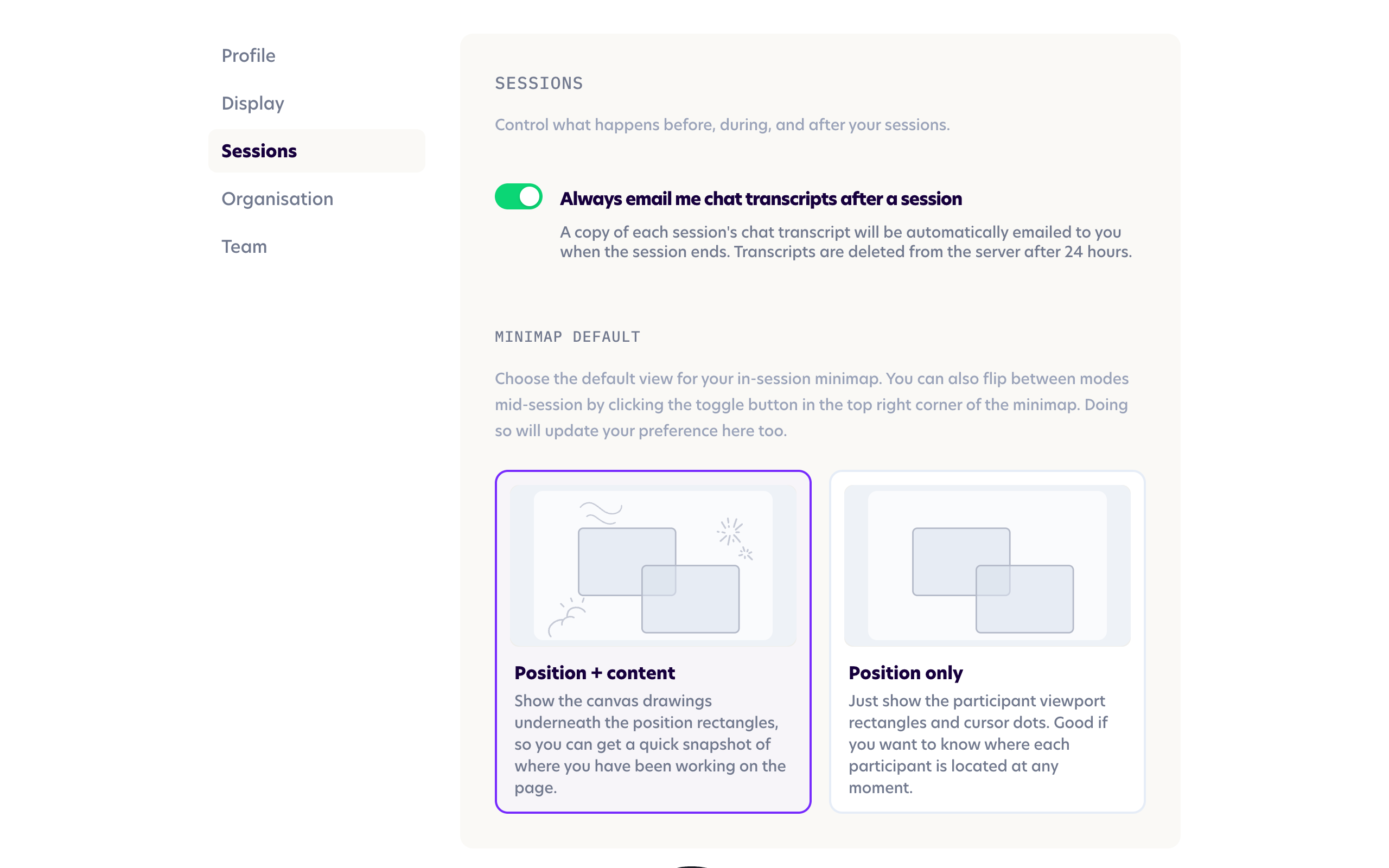
Email chat transcripts
When Always email me chat transcripts is switched on, a copy of the chat from each session is automatically emailed to you shortly after the session ends. It's an easy way to keep a record of anything typed into the chat during the session without having to remember to save it yourself.
This setting is on by default, and it's personal to just your account, so every clinician can choose their own preference.
If you switch it off, transcripts won't be emailed. You can still download them manually from the Previous Sessions screen for up to 24 hours after a session ends.
For privacy and data security reasons, chat transcripts are NOT persisted between sessions. We only keep transcripts on our server for 24 hours after a session ends, after which they're permanently deleted. If you switch this setting off, be sure to save anything you'd like to keep. You can read more in After a session.
Minimap default
The minimap is the small overview of your canvas that appears during a session so you can see where everyone is working. This setting controls how it looks when a session first opens.
Position + content includes your actual canvas drawings underneath the position markers, so you get a quick snapshot of where you've been working on the page.
Position only hides the drawings and shows just the participant rectangles and cursor dots. This is handy when you mainly want to see where everyone is, rather than what's on the page.
You can switch between the two at any time during a session using the toggle in the top-right corner of the minimap, as shown in the clip below.